Gmail Asking for Password Every Time? Fix It Now (2026)
Gmail asking for password every time? Clear cookies (fixes 70%), check security, or update apps. 8 working solutions.

You've closed Gmail, opened it again, and watched it ask for your password. Again. And again. And again.
It's maddening. You're sure you entered the right password. You're sure you clicked "Stay signed in." Yet Gmail seems to have complete amnesia about who you are.
The good news? This login loop isn't some mysterious Gmail curse. It's almost always fixable. We've spent years helping people manage their email efficiently at Inbox Zero, and we've seen every variation of this problem. More importantly, we know how to solve it.
Let's walk through why this happens and how to actually fix it (without the tech jargon that makes your eyes glaze over).
Why Does Gmail Keep Asking for Your Password?
Before we jump into solutions, understanding the why helps you prevent this from happening again.
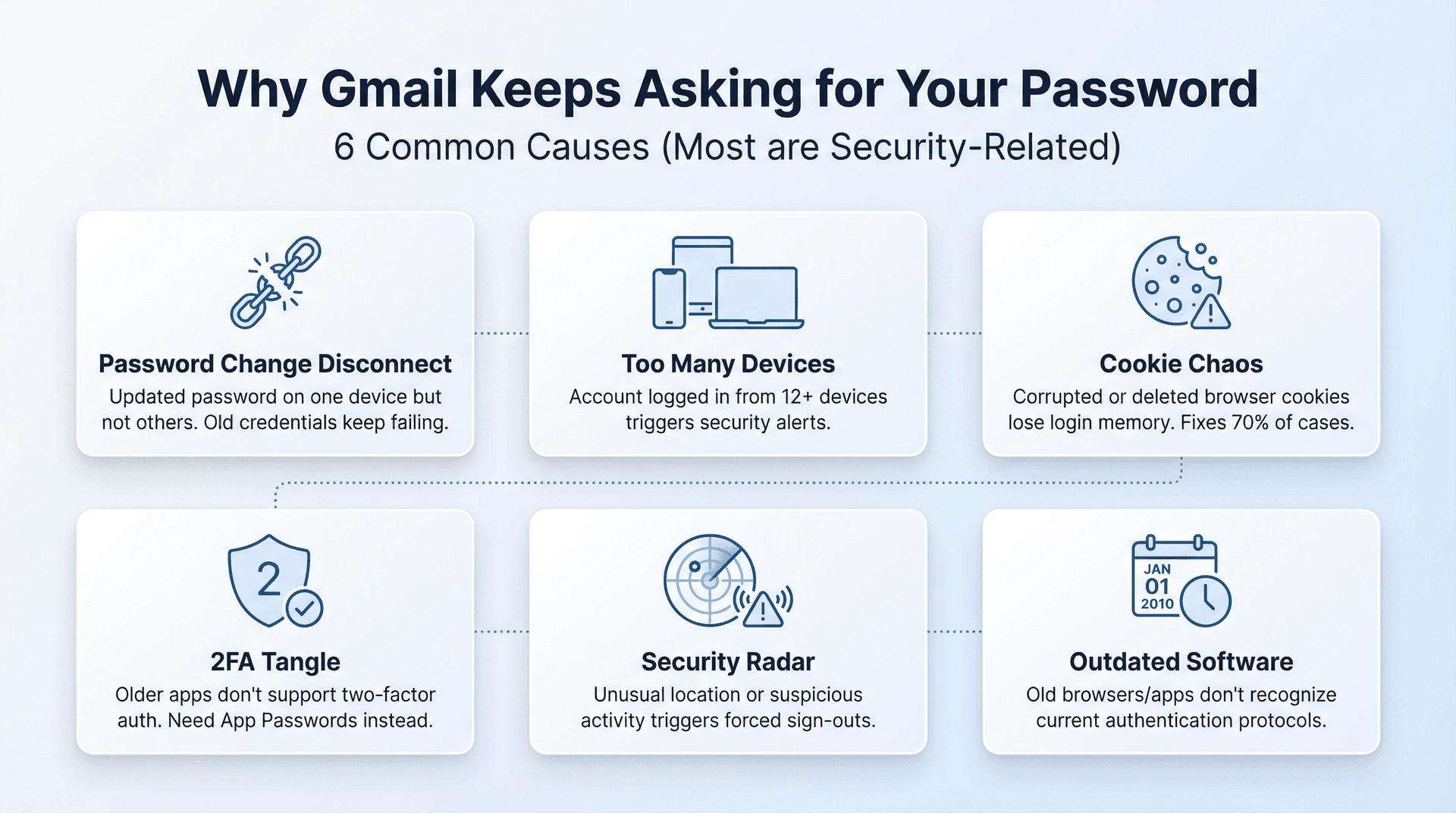
The password change disconnect. You updated your Google password last week but forgot to update it in your phone's mail app. Now that app keeps trying to log in with the old password, and Gmail (understandably) keeps rejecting it.
Too many cooks in the kitchen. Gmail gets suspicious when it sees your account logged in from twelve different devices at once. Its security systems think "This doesn't look right" and start demanding fresh logins to verify it's really you. Your browser's cookie chaos is incredibly common. Browsers use small files called cookies to remember you're logged in. When those cookies get corrupted, outdated, or accidentally deleted, Gmail loses all memory of your previous login.
The two-factor authentication tangle. If you've enabled 2-Step Verification (you should, by the way), some older email apps don't know how to handle it properly. They keep asking for a password when what they actually need is a special App Password. Google's security radar kicks in when Google detects a login from an unusual location, a new device, or what looks like suspicious activity. It'll sign you out everywhere as a safety measure. Better safe than compromised. Outdated everything matters too. That Gmail app you haven't updated in two years? That browser version from 2022? They might not play nice with Google's current authentication systems.
The pattern here is clear: most of these issues are security-related. Gmail isn't broken. It's being protective. Sometimes too protective, but we can work with that.
How to Fix Gmail Password Loop (8 Solutions That Work)
Let's get you back into your inbox without constantly typing that password. Start with the easiest fixes and work your way down if needed.
1. Check Your Password on All Devices
This sounds almost insulting to mention, but hear us out. The number of times this turns out to be the issue is surprisingly high.
Try logging in at accounts.google.com from a fresh browser window. If it works there but fails elsewhere, you've confirmed your password is correct and the problem lies in how other devices or apps are connecting.
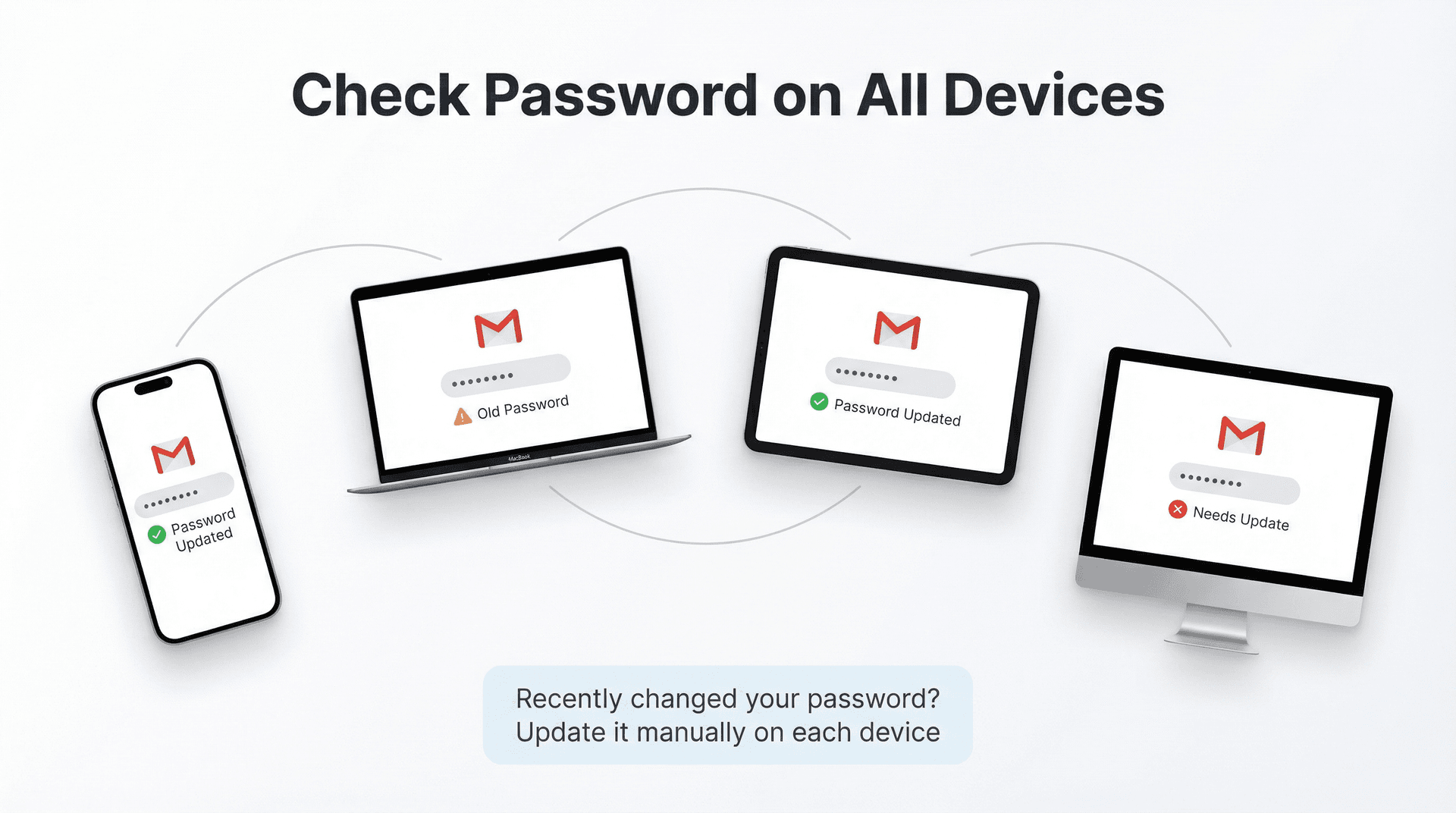
If you recently changed your password, that's probably your culprit. Every device and email app needs the new password entered manually:
• Your phone's native Mail app
• Desktop email clients like Outlook or Thunderbird
• That old tablet you barely use anymore
• Any email apps on your computer
Don't assume they'll update automatically, because they won't. Each one needs you to manually enter the new credentials in its settings.
Still uncertain about the password? Just reset it. Go to your Google Account security page, change it to something new and strong, then methodically update it on all your devices. This creates a clean slate.
Use a password manager if you're not already. It eliminates typos and makes this whole process less painful when you inevitably need to update passwords again later.
2. Clear Browser Cookies (Fixes 70% of Password Loops)
For anyone using Gmail in a web browser, this is usually the magic bullet. Corrupted cookies are responsible for probably 60-70% of Gmail login loops.
Here's how to clear them properly:
In Chrome:
-
Click the three dots menu, then Settings, then Privacy and security
-
Choose "Clear browsing data"
-
Select "All time" from the time range dropdown
-
Check both "Cookies and other site data" AND "Cached images and files"
-
Click "Clear data"
In Firefox:
Menu → Settings → Privacy & Security → Clear Data → select Cookies and Cache → Clear
In Edge:
Menu → Settings → Privacy, search, and services → Choose what to clear → select Cookies and Cached data → Clear
Yes, this will log you out of Gmail and other sites. That's actually the point. You're forcing Gmail to create a fresh session from scratch.
After clearing, close the browser completely (not just the tab), then reopen it and sign into Gmail again.
Pro tip: When you sign back in, make absolutely sure cookies are enabled for Gmail and you're not in incognito/private mode. Those modes are designed to forget your login, which defeats the whole purpose.
Most people find their problem vanishes after this step. If yours doesn't, keep going.
3. Review Your Google Security Settings
Sometimes Gmail's repeated password requests are actually a security response. Google saw something it didn't like and is being extra cautious.
Visit myaccount.google.com/security and look for:
Security issues found - This section will tell you if Google blocked a sign-in attempt or detected something suspicious
Recent activity - Look for logins from locations or devices you don't recognize
Your devices - A complete list of everything currently logged into your Google account
If you spot anything unfamiliar (a sign-in from a city you've never visited, a device you don't own), use Google's "Secure your account" option to:
• Change your password immediately
• Remove those unrecognized devices
• Sign out from all other sessions
You can force a complete sign-out from all devices using the option at the bottom of your devices list. This nuclear option clears everything and lets you start fresh. After that, sign back in on just your primary device first, then add others one at a time.
While you're in security settings: If you haven't enabled 2-Step Verification yet, do it now. It might seem like adding another layer of complexity, but it actually reduces these weird login issues in the long run by making your authentication more predictable and secure.
4. Fix Gmail in Outlook, Apple Mail, and Other Email Apps
If Gmail keeps asking for your password in an email app rather than the web browser, you're likely hitting Google's security restrictions on "less secure apps."
Here's what happened: Google used to allow email apps to log in with just your username and password. That method is now considered insecure, and Google has been phasing it out since 2022. If your email app is still trying to use that old method, Google blocks it and keeps asking for credentials.
The modern solution comes in two flavors:
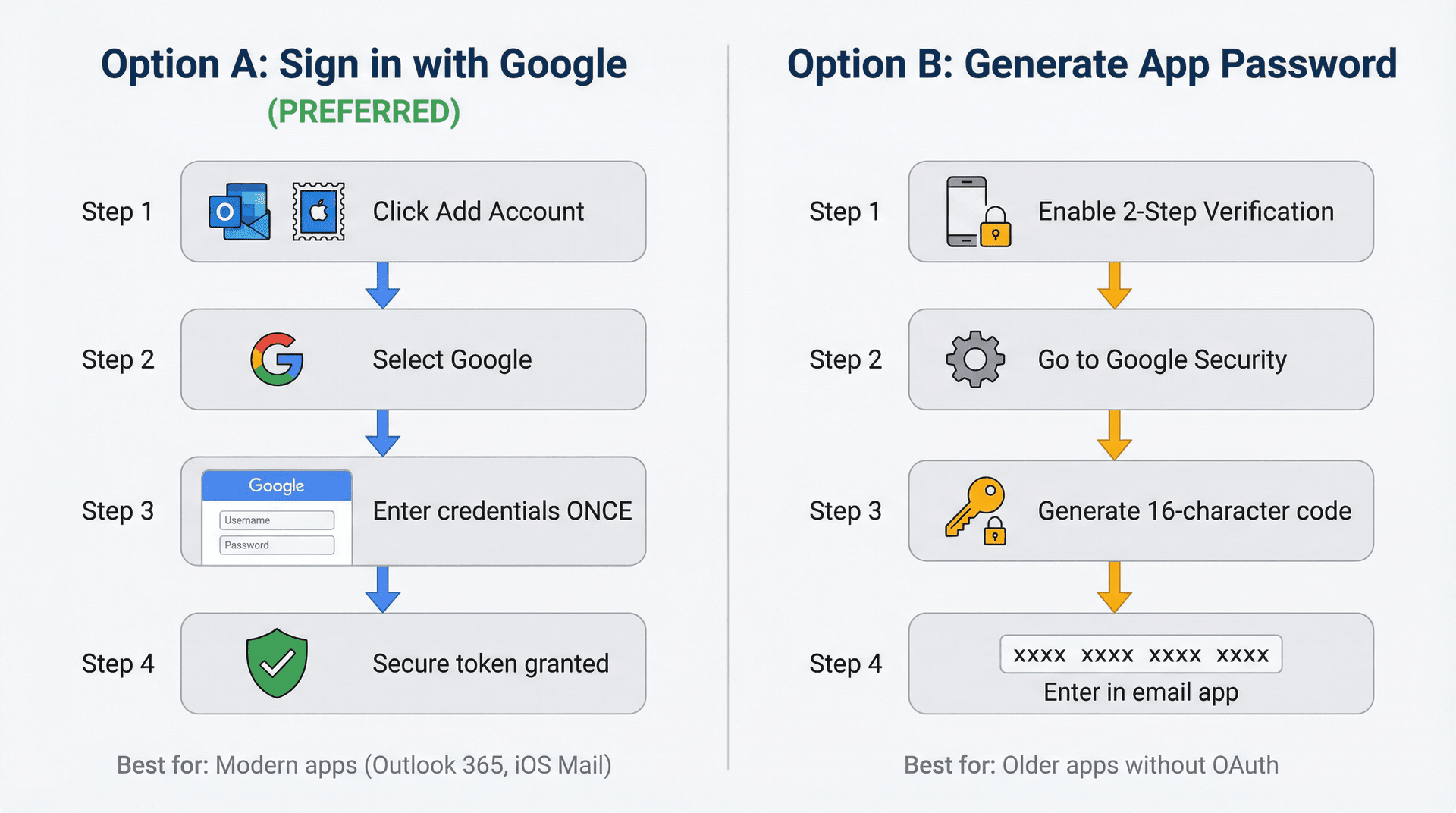
| Method | How It Works | Best For |
|---|---|---|
| Option A: Sign in with Google (preferred) | Click "Add account" → Select "Google" → A Google login window opens → You enter credentials once → Google gives the app a secure token instead of your actual password | Modern email apps (Outlook 365, iOS Mail, current Android apps) that support OAuth authentication |
| Option B: Generate an App Password | Enable 2-Step Verification → Go to Google Account Security → Find "App passwords" → Generate a 16-character code → Enter this password (not your regular Google password) in your email app | Older apps that don't support modern authentication |
Option A is safer, works better, and doesn't require repeated logins. If your app supports this, use it. This is the same secure authentication method that Inbox Zero uses to connect with your Gmail account.
For Option B (App Passwords), here's the process:
-
First, enable 2-Step Verification on your Google account (required for App Passwords)
-
Go to your Google Account Security page
-
Find "App passwords" (it'll only appear after you've enabled 2FA)
-
Click "Generate" and choose your app/device from the dropdown
-
Google shows you a 16-character password that looks like: xxxx xxxx xxxx xxxx
-
Enter this password (not your regular Google password) in your email app
For example, if you're adding Gmail to Outlook, use that 16-character App Password in the password field. Outlook will accept it and stop asking for credentials.
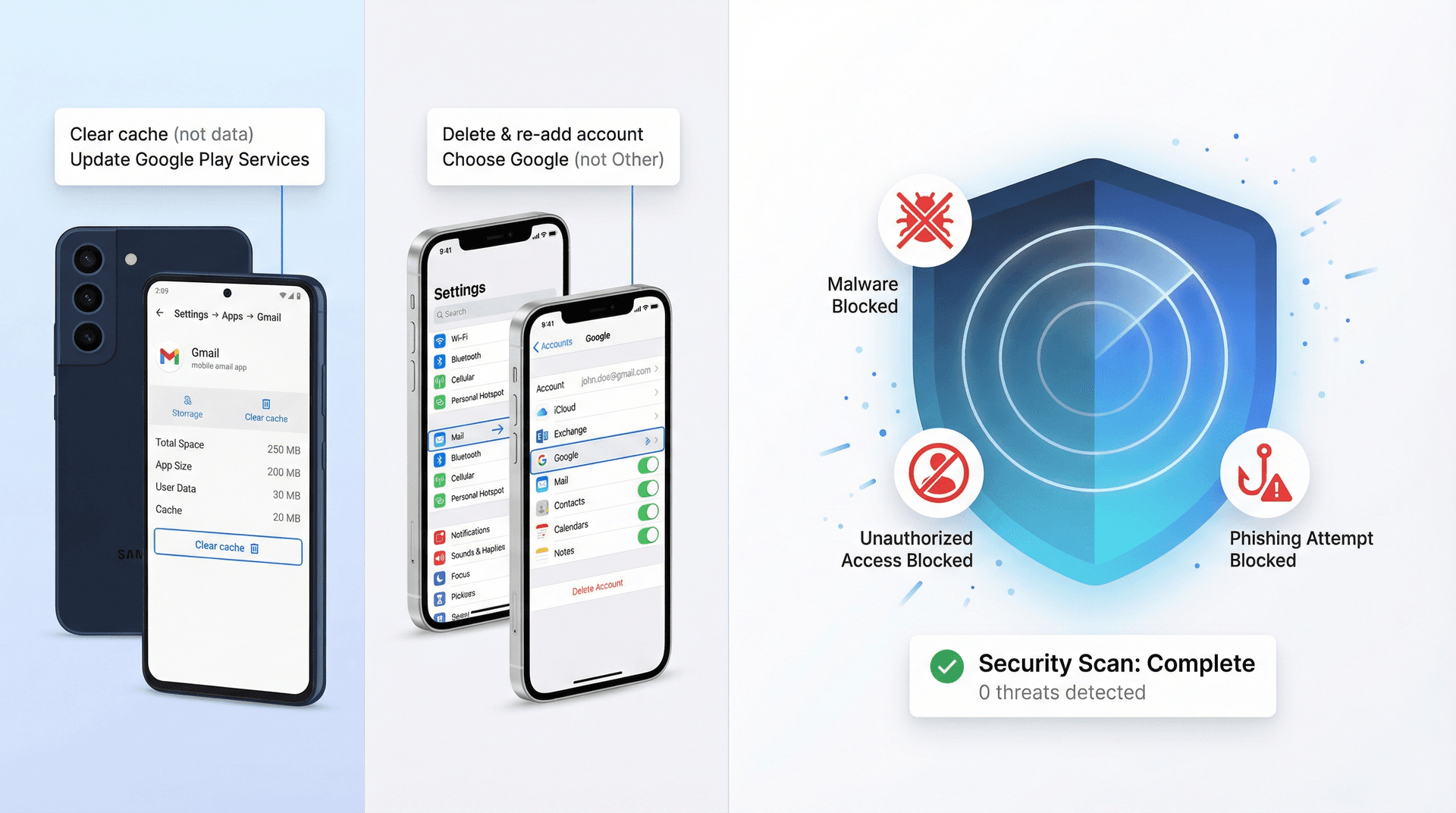
Important: If you're on iPhone and accidentally set up Gmail as an "Other (IMAP)" account, remove it and re-add it by selecting Google instead. This ensures iOS uses the proper authentication method.
For more details on whether it's safe to connect third-party apps to Gmail, check out our comprehensive guide on Gmail app security.
5. Update Your Browser, Gmail App, and Operating System
Outdated software and authentication problems go hand in hand. Older versions might not understand Google's latest security protocols.
Update your browser: Chrome, Firefox, Edge, and Safari all release regular updates. Check under Help → About to see your version and update if needed.
Update the Gmail app: On Android or iOS, check your app store for pending updates to Gmail or any email app you're using.
Update your OS: Windows, macOS, Android, and iOS updates often include important security and connectivity fixes. An old operating system can cause compatibility issues with modern authentication.
After updating, restart your device (yes, the full "turn it off and back on" treatment). Then try logging into Gmail again.
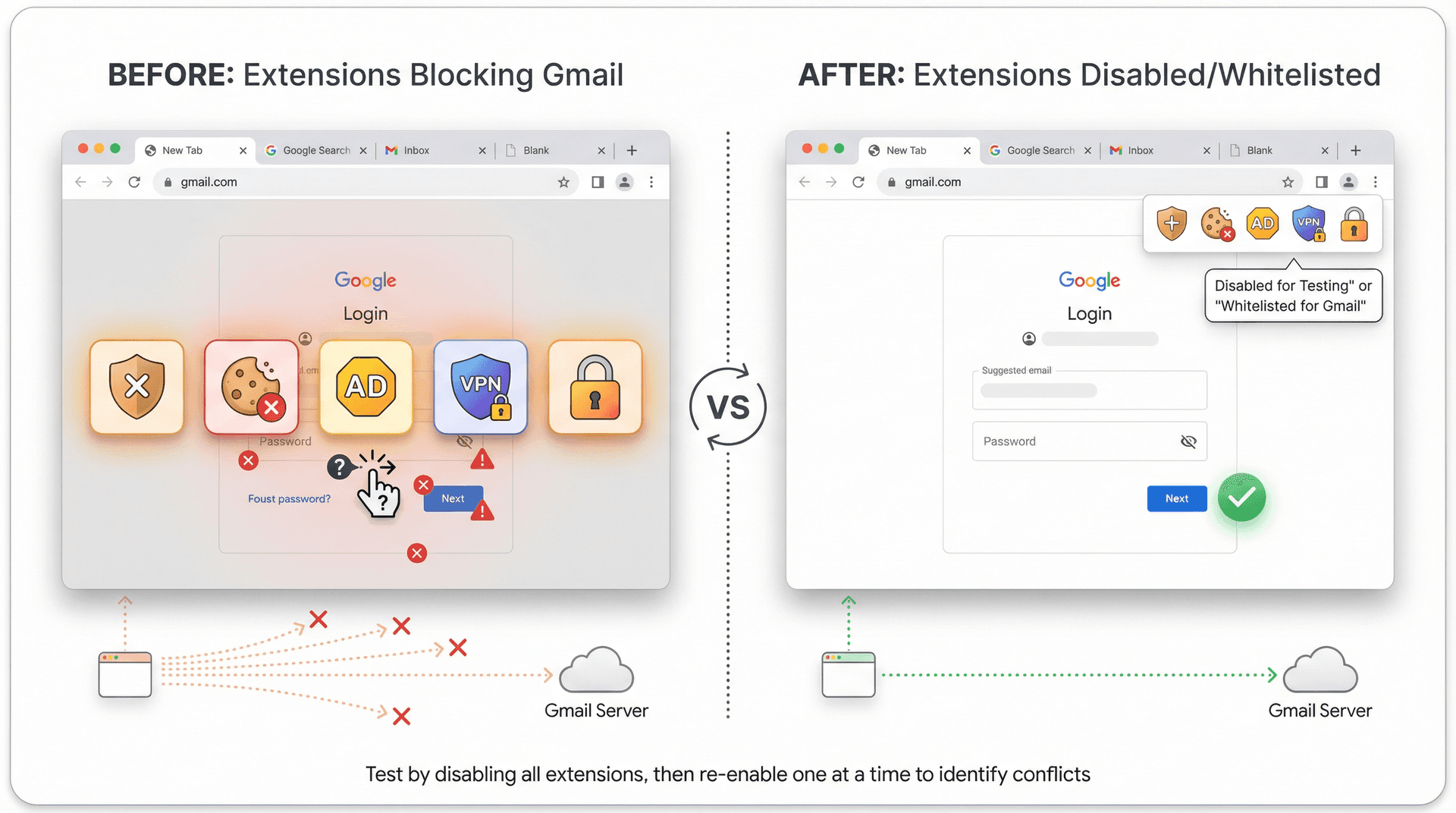
6. Turn Off Browser Extensions and Antivirus That Block Gmail
Sometimes your browser extensions or antivirus software are too aggressive and end up creating problems instead of preventing them.
Browser extensions to suspect:
→ Privacy extensions that auto-delete cookies
→ Ad blockers that interfere with Google's scripts
→ Security extensions that block authentication tokens
→ VPN extensions that make your IP address look suspicious
Test by disabling all extensions, then logging into Gmail. If it works, re-enable them one at a time to find the culprit.
Antivirus and firewall software can also intercept or block the communication between your browser and Gmail's servers. Try temporarily pausing your antivirus (just for a few minutes to test), then attempt to log in.
If disabling either of these solves the problem, add Gmail and Google to your whitelist/exception list rather than leaving them permanently disabled.
VPN users: Some VPNs make Google's security systems nervous because your IP address keeps changing or looks suspicious. Try connecting without the VPN to see if that's the issue.
7. Sign Out from All Devices and Reconnect Properly
When everything else fails, the "nuclear option" often works: force Gmail to forget all your current sessions and rebuild them from scratch.
Go to Google My Account → Security → Manage all devices, then use "Sign out of all devices" at the bottom of the list.
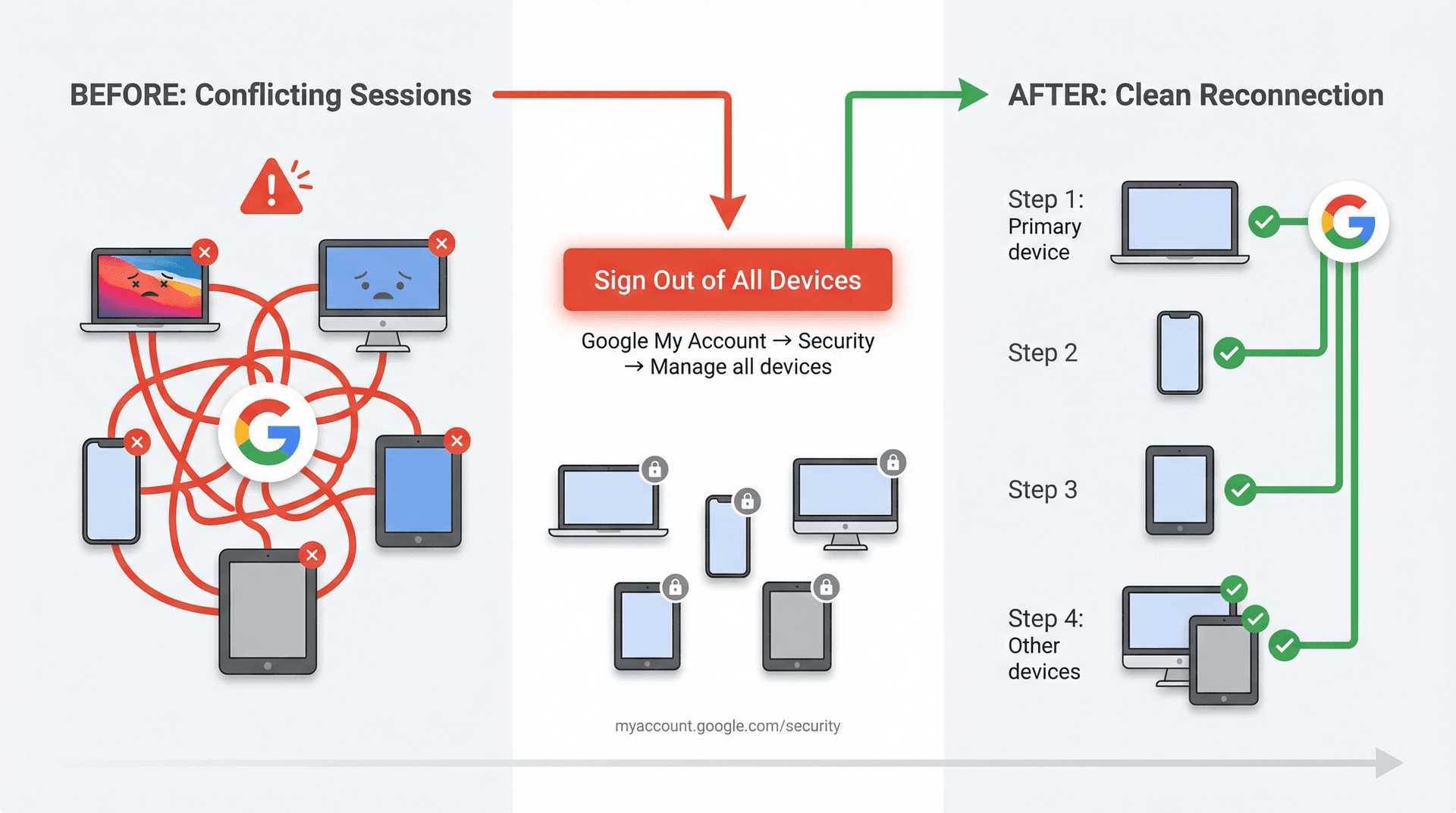
This kicks everything offline. After that:
-
Sign in on your primary device first (laptop or phone)
-
Confirm Gmail stays logged in without issues
-
Then add your other devices one at a time
-
Test each one before adding the next
This methodical approach helps you identify if one specific device was causing the problem. Maybe an old iPad with a stuck session was continuously trying to log in with bad credentials, triggering Google's security measures.
8. How to Fix Gmail Password Issues on Android and iPhone
| Platform | Key Fixes |
|---|---|
| Android | • Settings → Apps → Gmail → Storage → Clear cache (not data, just cache)<br>• Settings → Accounts → Google → Remove account → add it back<br>• Make sure Google Play Services is updated (it handles authentication) |
| iPhone/iPad | • If using Mail app: Settings → Mail → Accounts → delete Gmail → add it back (choose "Google," not "Other")<br>• If using Gmail app: delete and reinstall it<br>• Check Settings → Passwords & Accounts for stuck Gmail entries |
For more mobile Gmail troubleshooting, see our guide on fixing Gmail sync issues on iPhone and Android.
For work accounts (Google Workspace): Your company might have device policies that require additional setup, like a device PIN or specific security app. Check with your IT department if this is a work account.
9. Check for Malware and Unauthorized Account Access
If you've tried everything and Gmail is still asking for your password constantly, consider these less common issues:
Run a full antivirus scan. Malware could be interfering with your authentication or stealing login tokens.
Check your Google account for unauthorized apps. Go to Google Account Security → "Third-party apps with account access" and revoke anything you don't recognize.
Change your password again. If you have even the slightest suspicion your account was compromised, change it immediately. Gmail's constant re-authentication might actually be Google trying to protect you from an intruder.
Verify your recovery info is current. Make sure your backup email and phone number are yours and up to date. This helps you regain access if something goes wrong.
How to Avoid Password Problems with Modern Email Tools
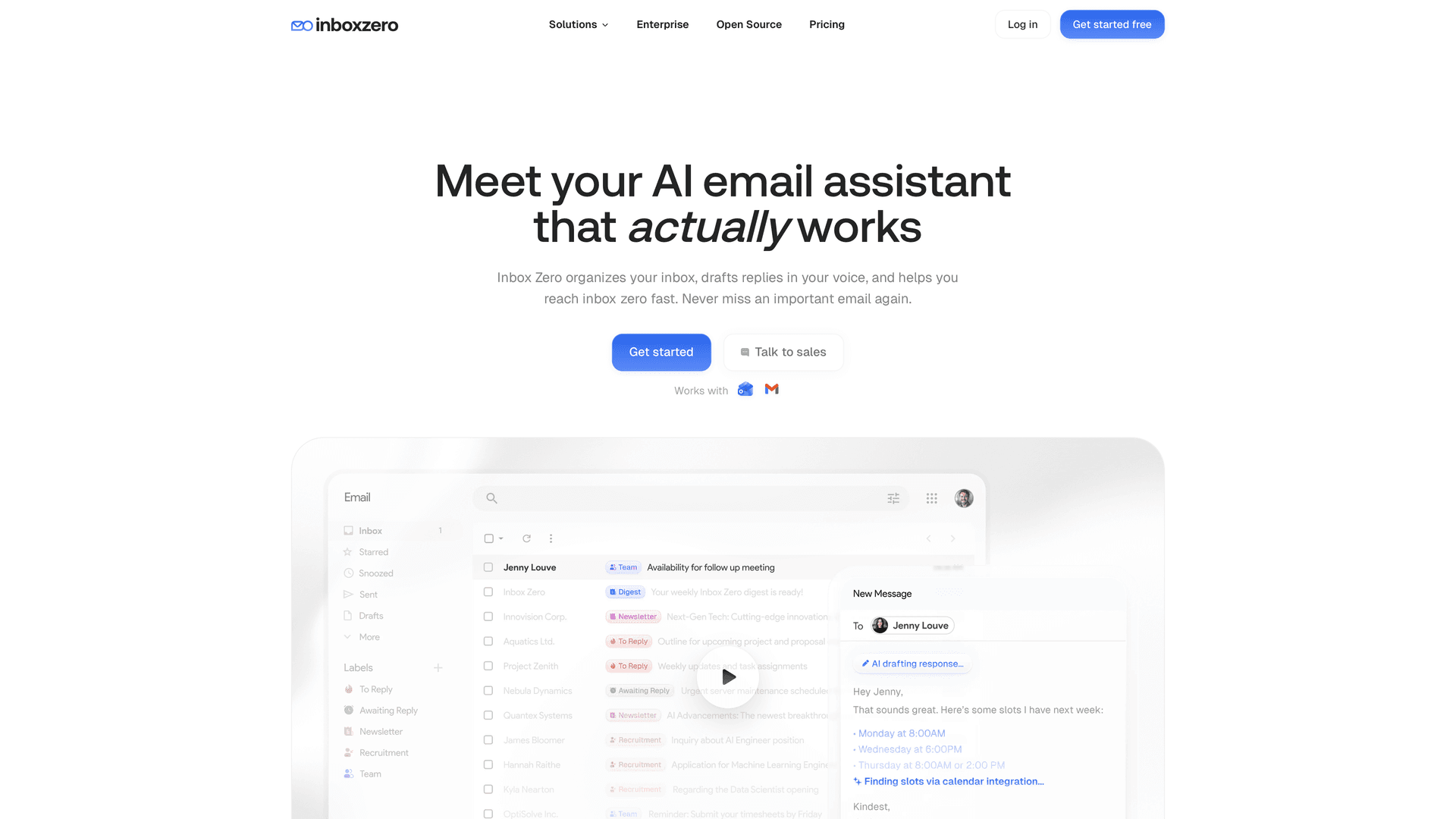
At Inbox Zero, we built our email assistant specifically to avoid these authentication headaches. We use Google's official OAuth integration, which means:
You sign in with Google directly (not by giving us your password)
Your credentials stay with Google (we never see or store your password)
The connection stays stable (no repeated login prompts)
It works within Gmail's security framework (SOC 2 compliant, CASA Tier 2 verified)
Once you authenticate Inbox Zero with your Google account, our AI assistant can automatically draft replies, label emails, block cold outreach, and bulk unsubscribe from newsletters without you constantly re-entering credentials. The authentication works the way Google intends, so you avoid these frustrating loops entirely.
Plus, because we're open source, you can see exactly how we handle your authentication and data. No black boxes, no mystery code.
Try Inbox Zero free to see how much easier email management becomes when authentication just works.
How to Prevent Gmail Password Loops from Happening Again
Once you've fixed the immediate problem, keep it from happening again with these email management best practices:
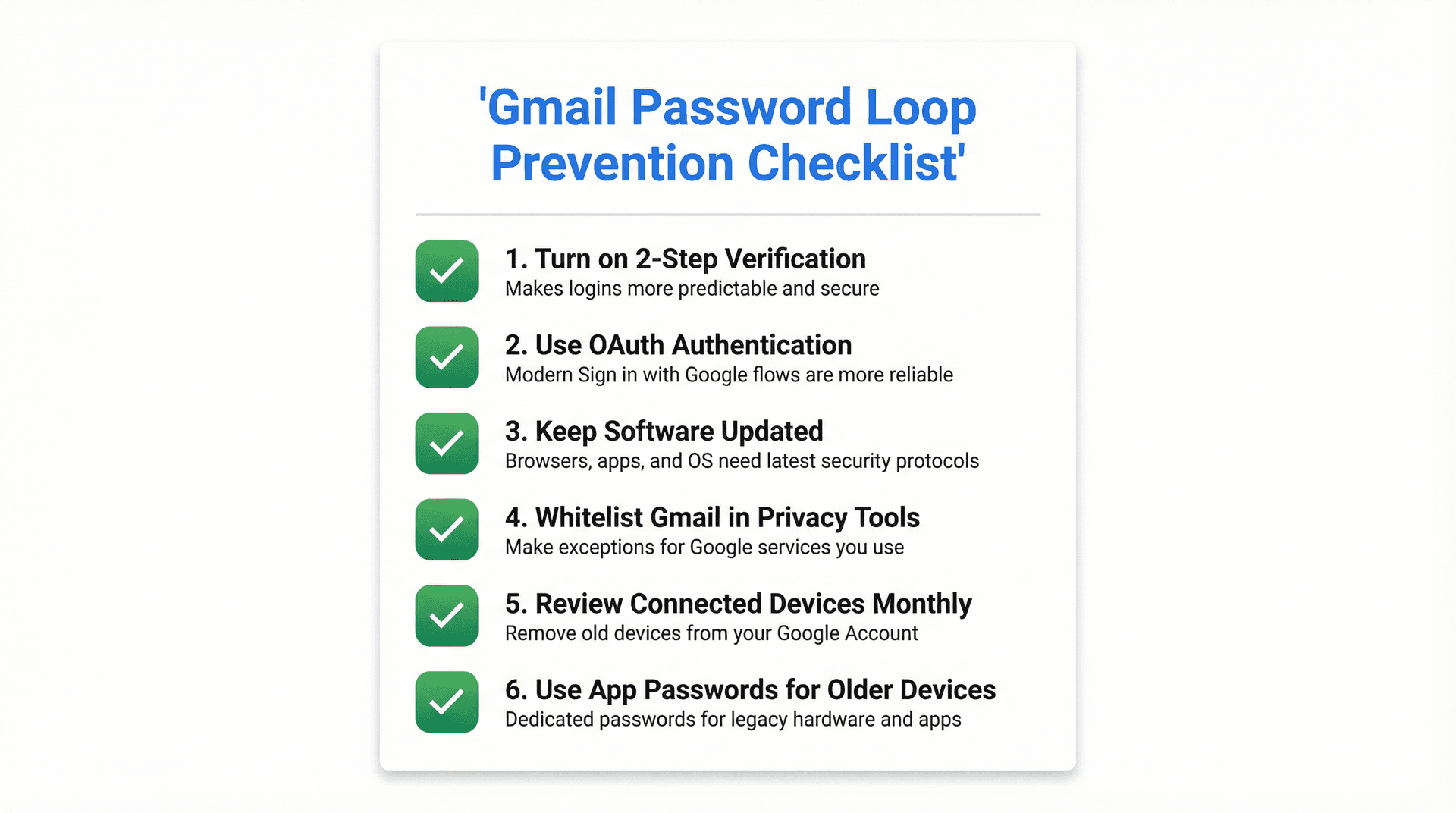
Turn on 2-Step Verification if you haven't already. It actually makes logins more predictable and secure.
Use OAuth authentication wherever possible. Modern "Sign in with Google" flows are more reliable than username/password combinations.
Keep software updated. Current browsers, apps, and operating systems have the latest security protocols built in.
Whitelist Gmail in privacy tools. If you use aggressive cookie-blocking or privacy extensions, make exceptions for Google services you actually use.
Review connected devices monthly. Visit your Google Account security page and remove old devices you're not using anymore.
Use App Passwords for older devices. If you have legacy hardware or apps that can't be updated, set up dedicated App Passwords rather than using your main password.
Summary: Quick Fixes for Gmail Password Loop Issues
Gmail asking for your password every single time usually comes down to one of three things:
| Root Cause | The Fix |
|---|---|
| Corrupted browser cookies | Clear them completely (Solution #2) |
| Outdated authentication methods in email apps | Switch to OAuth or use App Passwords (Solution #4) |
| Google's security systems responding to something suspicious | Check your security page (Solution #3) |
Start with clearing cookies in your browser. That alone solves the problem for most people.
If you're dealing with this in Outlook, Apple Mail, or another email app, the solution is almost always switching to Google's modern sign-in method or using an App Password instead of your regular password.
And if you're just tired of authentication headaches entirely, tools like Inbox Zero are built to handle Gmail the way Google intends, using secure OAuth that doesn't require constant re-logins. We focus on making email actually useful instead of making you fight with login screens.
Email should be a tool that works for you, not a daily frustration that costs you time and sanity. Fix the authentication, and get back to actually managing your inbox.
Try our Chrome extension for Gmail if you want a faster way to organize your inbox with custom tabs (completely free, 100% private, no account needed). Learn more about how our Gmail tabs extension works.
Ready to stop fighting with Gmail and start managing your email intelligently? Get started with Inbox Zero and see what a properly authenticated, AI-powered email assistant can do for you. For common questions about getting started, check out our FAQ.
What is the Inbox Zero Method & How do I Master It?
Discover the Inbox Zero method and learn simple steps to take control of your email inbox, stay organized, and boost productivity.

4 Email Productivity Hacks from Tim Ferriss, Andrew Huberman, and Sam Harris
Explore 4 powerful email productivity hacks from tech and wellness experts like Tim Ferriss and Andrew Huberman. Learn to create focus, optimize processing, manage time wisely, and delegate effectively to conquer your inbox.
Best Time to Send Emails for Response (2026)
Stop guessing when to send emails. Get data-backed timing strategies from 2026 research that improve response rates across all scenarios.
How To Organize Outlook Inbox? (2026 Guide)
Learn how to organize Outlook inbox with rules, folders, categories, and AI automation. Step-by-step guide for 2026 that actually works.