How Many Emails Before Gmail Crashes? (2026)
Discover how many emails Gmail can handle before slowing down. Most users hit issues at 100K+ emails or 90% storage. Learn prevention strategies for 2026.

You've probably wondered at some point: can I actually break Gmail by having too many emails?
It's a fair question. If you're like most longtime Gmail users, your inbox has quietly accumulated thousands (or tens of thousands) of messages over the years. Maybe you've been following Google's original philosophy of "archive, don't delete," treating your email like an infinite digital filing cabinet.
The short answer? Gmail won't suddenly crash at a specific number of emails. But there's a longer, more interesting story about what actually happens when your mailbox gets extremely large.
Gmail Storage Limits vs Email Count
Here's what most people don't realize: Gmail doesn't cap you at a certain number of messages. The constraint is storage space, not message count.
Free Gmail accounts come with 15 GB of storage shared across Gmail, Google Drive, and Google Photos. Paid Google One or Workspace plans offer more. This is one of the key factors in understanding how Gmail manages your inbox.
So how many emails can fit in 15 GB?
Turns out, a lot. Plain text emails are tiny (usually just a few kilobytes each). You could theoretically store hundreds of thousands of plain text messages before hitting your limit. Users have reported having countless thousands of emails accumulated over many years with Gmail still functioning normally.
The catch? This includes everything. All your folders (Inbox, Sent, All Mail), plus all those attachments from years past. And if you run out of storage, Gmail will stop accepting new mail and may prevent you from sending messages.
What's worse, once you approach your storage cap (above around 90% usage), Gmail can start acting strangely. You might see errors when trying to send emails, or incoming messages bouncing back to senders. Learn more about what happens when Gmail runs out of space.
When Does Gmail Start Slowing Down
Gmail's backend can handle very large mailboxes. People routinely store 50,000+ emails without issue. Some users have even accumulated over half a million messages.
But there's a difference between "can handle" and "performs well."
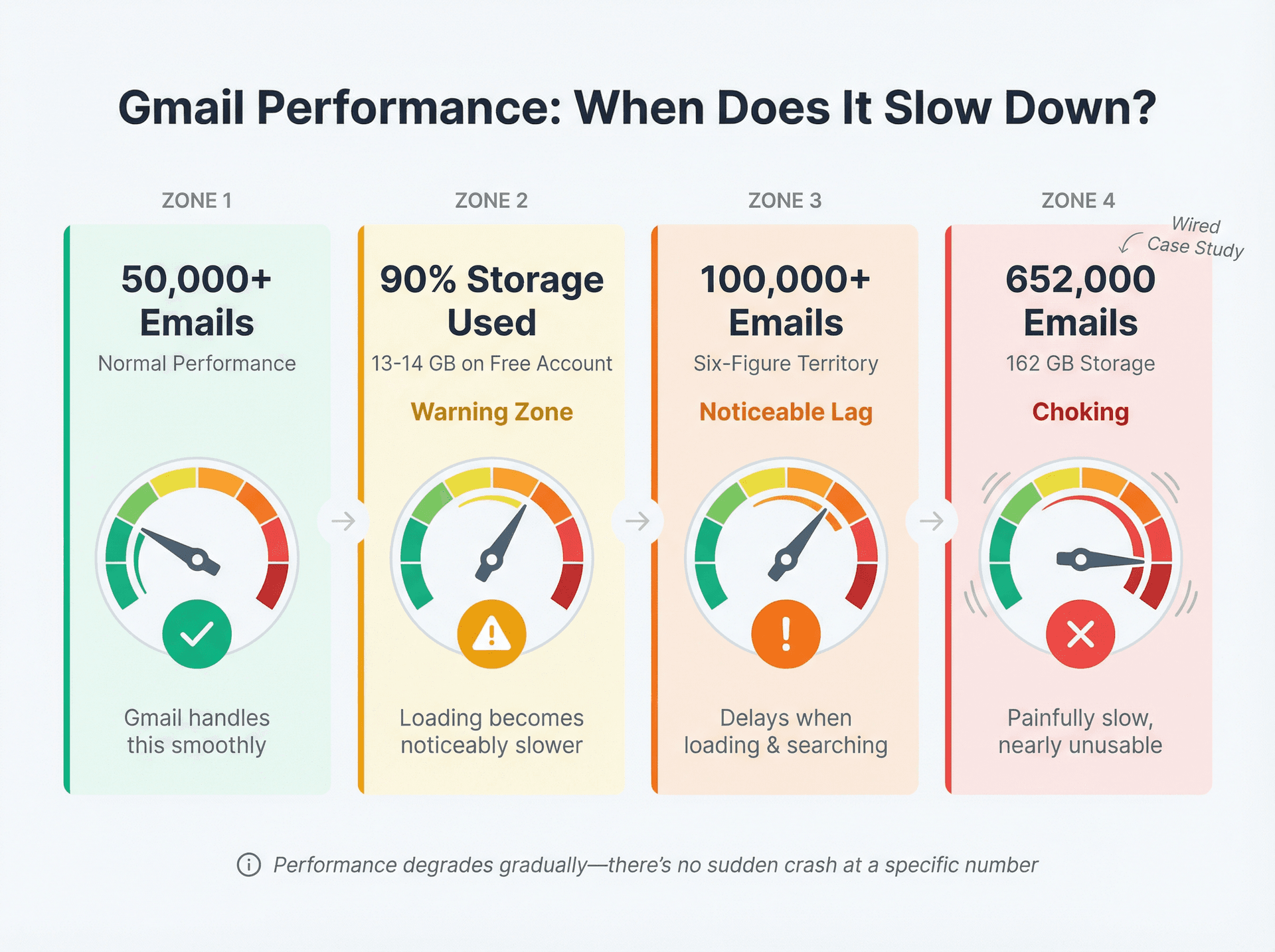
Near-Full Storage (Over 90% Used)
Near-full storage (>90% used)
When your Google account storage is almost maxed out, Gmail may slow to a crawl. The system needs breathing room to operate efficiently.
Even before hitting total capacity, many users notice Gmail loading slowly when the storage meter hits the red zone (above around 13-14 GB used on a free account). This is where effective email management strategies become critical.
Crossing 100,000 emails
While Gmail can handle tens of thousands of messages, crossing into six figures can noticeably slow it down. At that scale, you may experience delays when loading conversations or searching your mail.
Think about it: Gmail's search index has to churn through a massive dataset every time you look for something. The web interface becomes less responsive because it's working harder to display your messages. Consider using email management software to help organize large volumes.
The extreme example: 652,000 emails
A tech writer at Wired shared a fascinating case study. His longtime Gmail account had accumulated 652,000 emails (using about 162 GB of storage), and Gmail was "choking" on that volume.
Opening and searching emails became painfully slow. The service was grinding to a halt, though it didn't technically crash.
His fix? He deleted large attachments, purged thousands of old messages, and removed unused labels. After the cleanup, Gmail "ran noticeably faster."
This suggests that beyond a certain volume, even if Gmail remains functional, it may be effectively unusable until you reduce the load. Adopting the inbox zero method can help prevent reaching this point.
What Else Slows Down Gmail
Too many labels or filters
Gmail allows up to 10,000 labels per account, but Google recommends staying under 500 because the list may take longer to load if you exceed that.
Independent tests indicate that having over 500 labels can slow down Gmail by 20-30% due to processing overhead. Similarly, you can have up to 10,000 filter rules, but large numbers of filters make incoming mail processing slower. Understanding the difference between Gmail labels vs folders can help you organize more efficiently.
The guy with 652,000 emails? He had 350 labels accumulated over the years. Removing those labels was one step that helped speed things up.
Web interface pagination
Gmail's web app shows 50 emails per page by default. You can increase this to 100 emails per page, but that's the maximum.
This isn't arbitrary. Loading hundreds or thousands of messages in one long scroll would strain your browser and Gmail's servers, potentially making it unresponsive. Even at 100 per page, older devices or slow connections might experience lag.
Gmail paginates content to avoid crashing your browser tab when you have a huge inbox.
Conversation thread limits
Gmail's conversation view groups emails by subject, but it stops grouping after about 100 messages in one thread according to Gmail's threading behavior. The 101st reply will start a new thread.
This prevents an overly long email chain from bogging down the interface. Imagine a thread with hundreds of replies trying to load all at once.
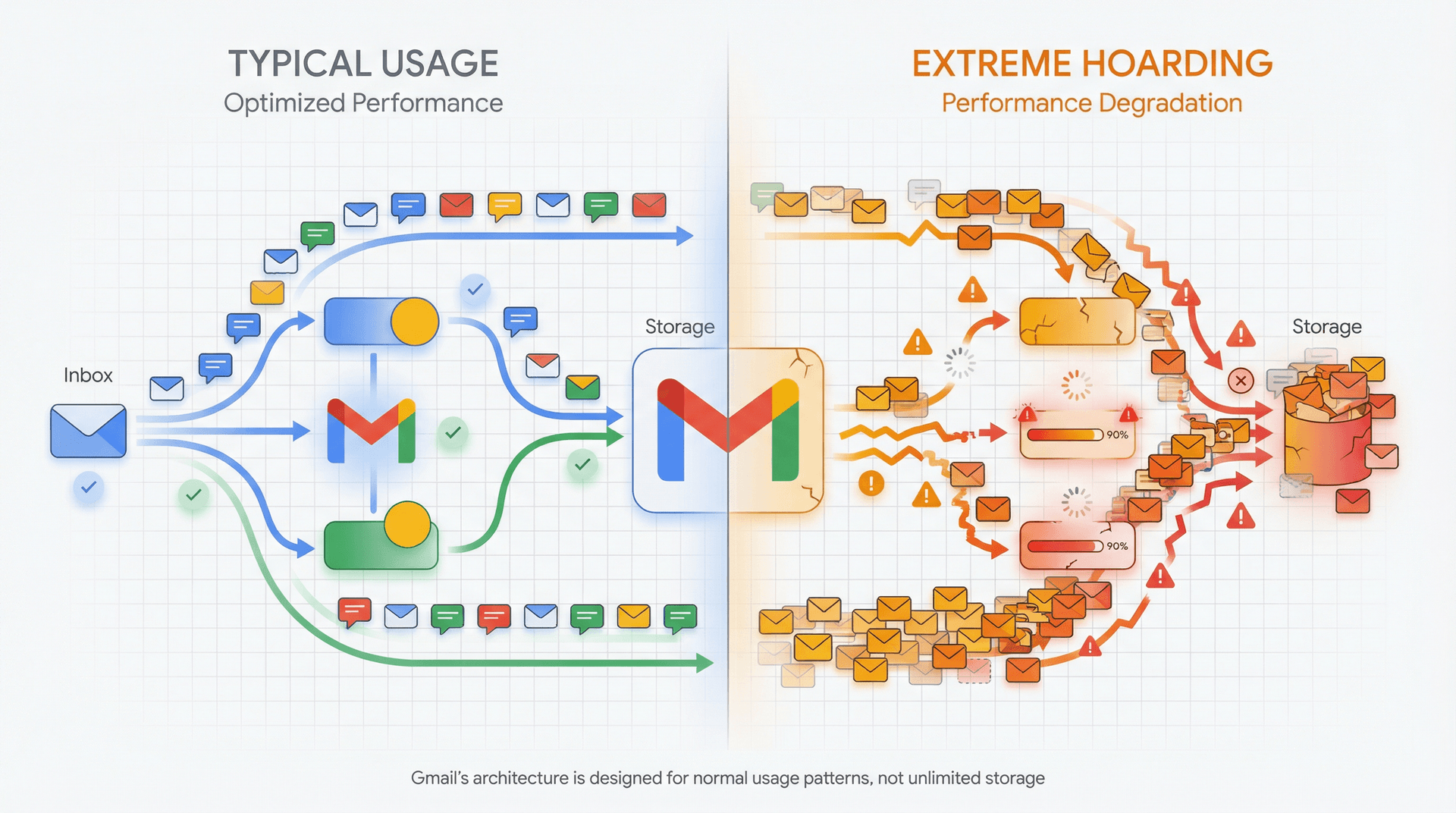
Key insight: Gmail's web interface and performance are optimized for "typical" usage, not extreme hoarding. There's no exact number where it crashes, but if you have hundreds of thousands of emails and your storage is nearly full, expect serious slowdowns.
Gmail's Official Limits (2025)
Beyond performance concerns, Gmail has built-in sending and receiving limits. These are in place to prevent abuse and keep the system healthy. Understanding these limits is part of effective email management.
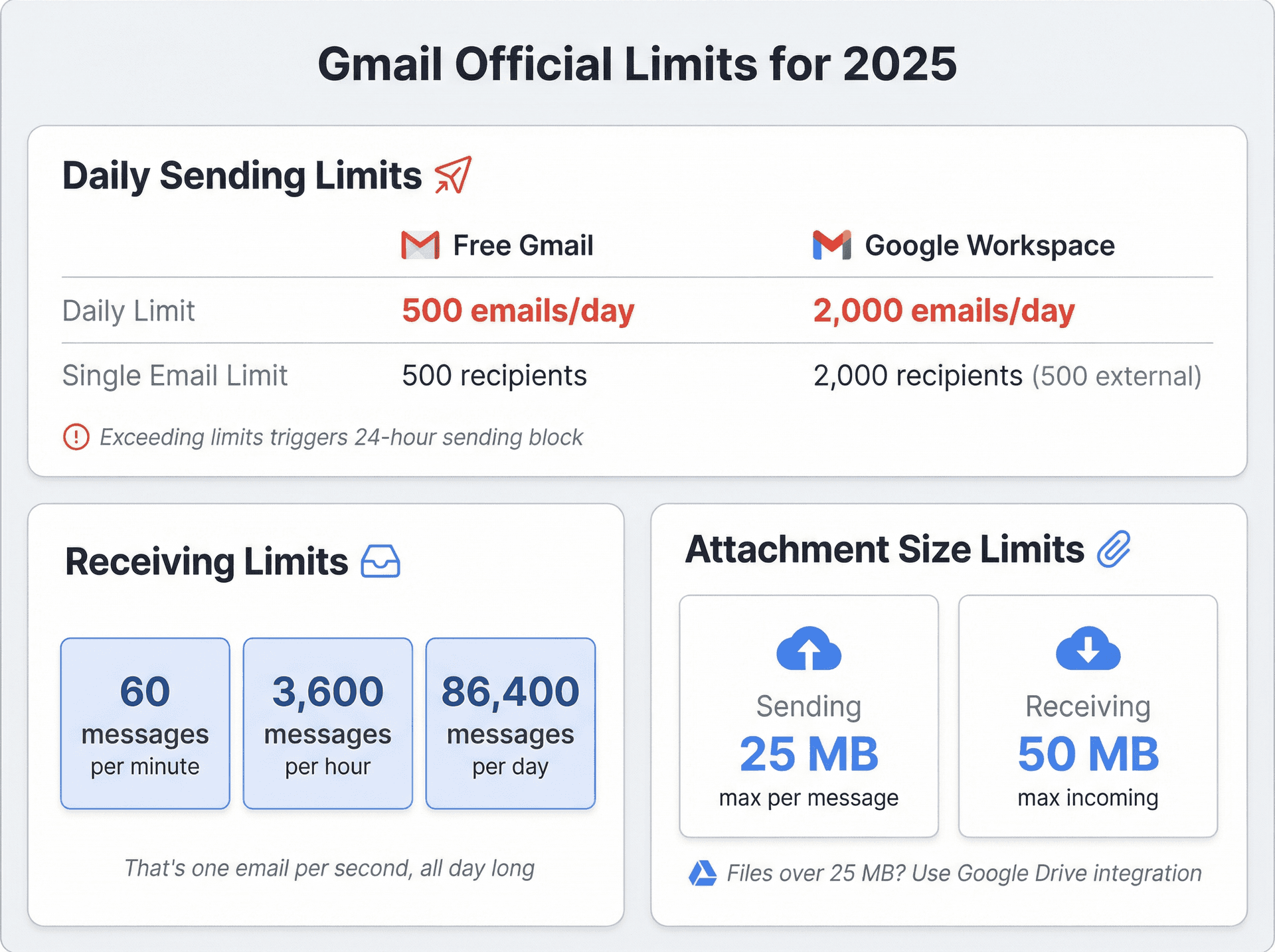
Daily Sending Limits
| Account Type | Daily Limit | Single Email Limit |
|---|---|---|
| Free Gmail | 500 emails/day | 500 recipients |
| Google Workspace | 2,000 emails/day | 2,000 recipients (500 external) |
Hit these limits and you'll see an error: "You have reached a limit for sending mail." You won't be able to send more for up to 24 hours according to Gmail's sending limits documentation.
Receiving Limits
Gmail can technically receive up to 60 messages per minute, 3,600 per hour, and 86,400 emails per day into a single account.
That's one email per second, all day long.
Very few people will ever hit this. But if you're receiving bulk notifications or forwards approaching these rates, Gmail may start deferring or bouncing messages. In practice, your storage capacity would kick in long before you hit 86,400 messages in one day. Understanding email management tips can help you stay well under these limits.
Attachment Size Limits
Each Gmail message can be up to 25 MB when sending (attachments plus body together). Incoming emails can be larger (Google will accept up to 50 MB).
Large attachments eat into your storage quickly, which is why Google provides Drive integration for files over 25 MB. You can learn to find emails with attachments only when cleaning up your inbox.
Bandwidth and Sync Limits
For those using Gmail via IMAP in a desktop client, Google has bandwidth limits: downloading is capped at 750 MB per hour (1250 MB per day).
Normal web Gmail users won't hit these. But if you connect Gmail to an email client and try to sync an archive of 100,000 messages in one go, you might run into throttling.
How to Prevent Gmail From Slowing Down
Whether you have 5,000 emails or 500,000 emails, smart inbox management ensures Gmail stays fast and responsive.
Delete Large and Old Emails
Over years, the worst culprits for bloating your account are emails with big attachments (photos, PDFs, videos) and old newsletters you don't need anymore.
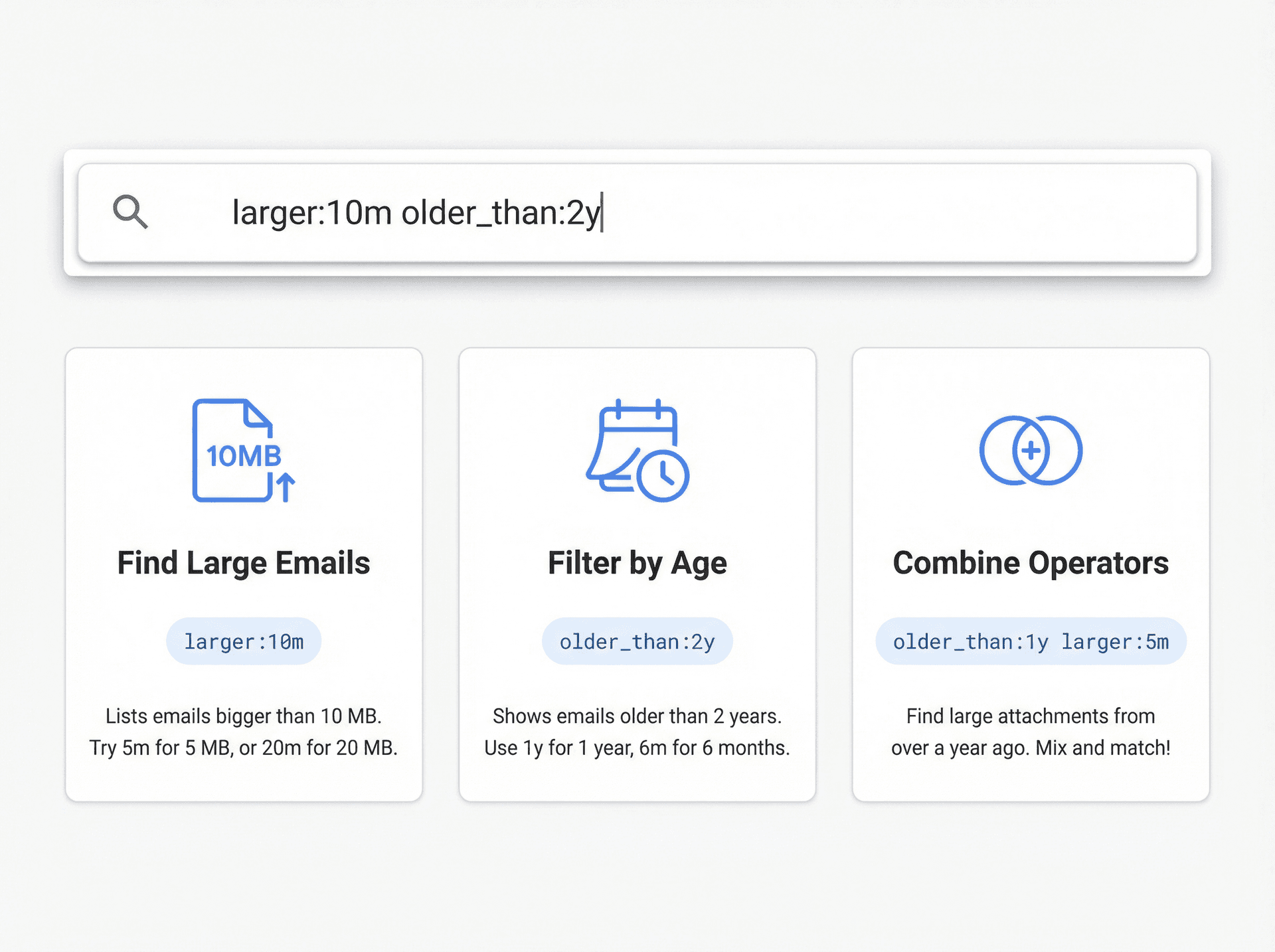
Use Gmail's search operators to find space hogs:
• Search for larger:10m to list emails bigger than 10 MB
• Search for older_than:2y for emails older than 2 years
• Combine operators: older_than:1y larger:5m finds large attachments from over a year ago
Review and delete messages that are just taking up room, especially ones with attachments you've already saved elsewhere. You can find the oldest emails in Gmail to start your cleanup. Then empty your Trash since emails in Trash still count toward your storage until permanently purged.
By targeting a few dozen huge emails, you can reclaim gigabytes of space. For a comprehensive approach, check out our guide on how to delete all emails in Gmail.
Archive Instead of Delete (Sometimes)
If you have a habit of never deleting mail, at least use Archive. Archiving moves messages out of your Inbox into "All Mail." They're still stored, but not shown in the main list.
This helps because Gmail loads your Inbox view faster when it's not listing 20,000 emails at once. Archiving reduces clutter that slows down loading, without permanently deleting anything. Learn more about Gmail All Mail vs Archive to understand the distinction.
Just remember: archived mail still counts toward storage, so you may eventually need to delete if you're hitting capacity.
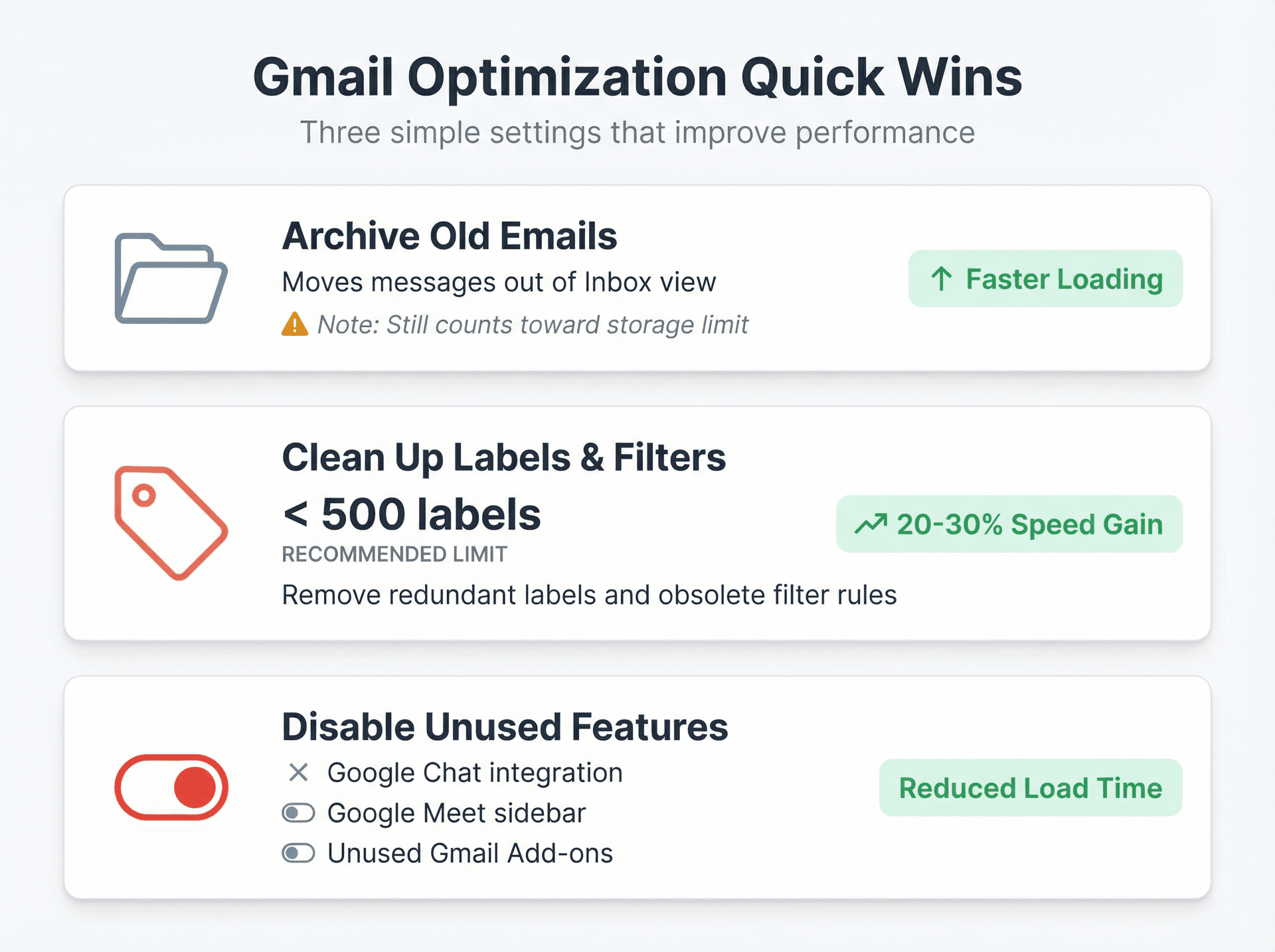
Clean Up Labels and Filters
Go to Settings > Labels and remove labels that are redundant or unused (old project folders, auto-generated categories you never check).
Google advises staying under 500 labels for best results. If you currently have far more, consolidate. Instead of separate labels for every year ("Receipts-2018," "Receipts-2019"), maybe one "Old Receipts" label is enough.
Also review your Settings > Filters and Blocked Addresses. Remove obsolete rules so Gmail isn't processing dozens of rules on every incoming message unnecessarily.
Disable Unneeded Features
Gmail comes with features like Meet, Chat, and Tasks. If you don't use them, disabling these can streamline Gmail.
The Hangouts/Chat widget is known to cause typing lag for some users. You can turn off Google Chat/Meet integration in Gmail's settings to reduce what loads with your inbox.
If you installed any Gmail Add-ons from the Marketplace, consider removing ones you no longer use. Every add-on can add load time.
Check Your Browser and Network
Sometimes "Gmail is slow" isn't about your inbox size at all.
Make sure you use a modern, updated browser (Gmail is optimized for the latest versions of Chrome, Firefox, Edge). Clear your browser cache and cookies periodically, especially if Gmail's interface acts strangely.
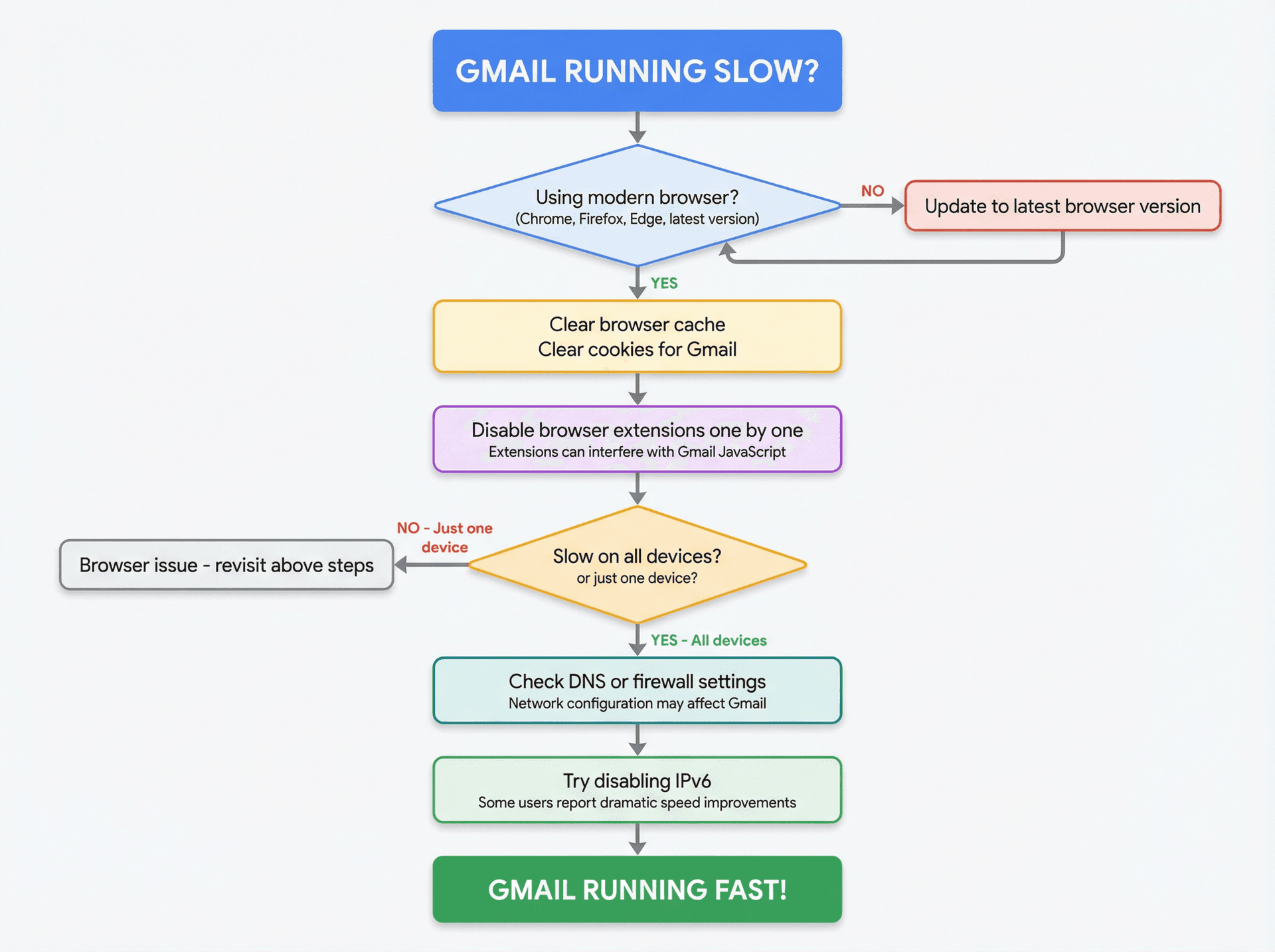
Disable browser extensions one by one to see if any interfere with Gmail. Extensions can bog down the JavaScript that Gmail runs.
On the network side, check if Gmail is slow across all devices or just one. If it's just one device, that points to a browser issue. If it's all devices on one network, perhaps a DNS or firewall issue is affecting Gmail.
One user found Gmail became "blazingly fast" after disabling IPv6 on their network when nothing else worked.
Adopt Proactive Inbox Management
The best way to avoid ever wondering "will Gmail break now?" is to adopt good inbox habits. This is where understanding how to manage your inbox makes all the difference.
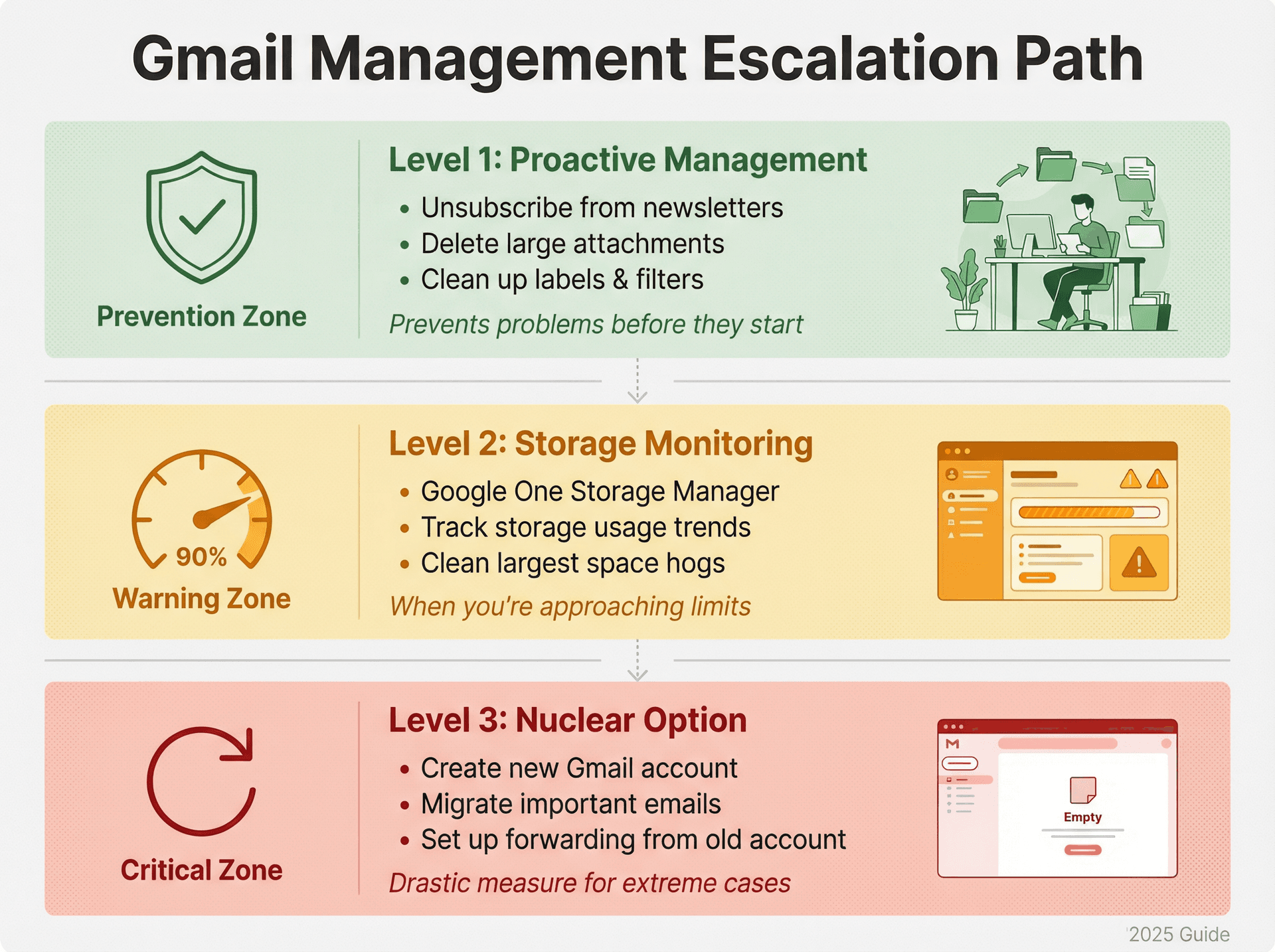
Unsubscribe from newsletters or promotions you don't read. They add up quickly. Gmail has a built-in unsubscribe link for many mass emails.
Better yet, use automation to help. At Inbox Zero, we built our Bulk Email Unsubscriber specifically for this. It scans your senders, shows you which ones you rarely read, and lets you one-click unsubscribe or auto-archive future emails from them. It's a fast way to cut down noise before it becomes a problem. Learn more about how to bulk unsubscribe from emails.
By curbing the influx of unwanted mail, you prevent your Gmail from getting bloated in the first place. Check out our complete guide on how to manage email subscriptions.
Monitor Your Storage
Google's Storage Manager (part of Google One) can show you a breakdown of storage used by Gmail and pinpoint large items.
Access it at one.google.com/storage. It will identify things like "Emails with large attachments" or "Spam and Trash" so you can clear them out directly.
The Nuclear Option: Start Fresh
As a last resort, if your Gmail has accumulated an unmanageable amount of data and cleanup isn't helping, you could consider starting a new account and migrating important messages over.
The Wired author with 652,000 emails actually ended up creating a brand new Gmail address after trying cleanup, because decades of archived mail had made his old account perpetually sluggish. He set up forwarding from the old to the new and notified contacts of the change.
This is drastic (and you lose the convenience of one account for all history), but it will guarantee a snappy experience. Before taking this step, consider exploring best email management apps that might help you organize your existing account.
How Inbox Zero Helps You Stay Ahead of Gmail's Limits
Gmail is robust. You're not going to break the internet by receiving "too many emails."
But letting your inbox grow without bound will eventually hurt your experience. Rather than a sudden crash, it's a slow slide into laggy loading and frustration.
This is where smart automation makes all the difference.
We built Inbox Zero specifically to help you manage email volume before it becomes a problem. Our AI email assistant automatically:
→ Labels and archives low-priority emails so they don't clog your inbox
→ Bulk-unsubscribes you from senders you consistently ignore using our Bulk Email Unsubscriber
→ Surfaces important emails that need replies using our Reply Zero feature
→ Blocks cold outreach automatically using our Cold Email Blocker so your inbox stays focused
The result? Your inbox count remains manageable, your storage stays healthy, and you'll likely never approach Gmail's performance limits at all. See how our AI email management approach differs from traditional methods.
Think of it as preventive maintenance for your email. Instead of waiting for Gmail to slow down when you hit 100,000 messages, you keep your active inbox lean from day one.
And because Inbox Zero uses AI rules that learn your preferences, it gets better over time. Messages are automatically sorted, drafted, and managed without you lifting a finger. Learn more about our email automation features.
Plus, we offer a Chrome extension for Gmail that adds custom tabs to your inbox for even better organization. It's 100% private with no data collection, bringing Superhuman-style split inbox functionality directly to Gmail. Read more about Inbox Zero Tabs for Gmail.
The Bottom Line
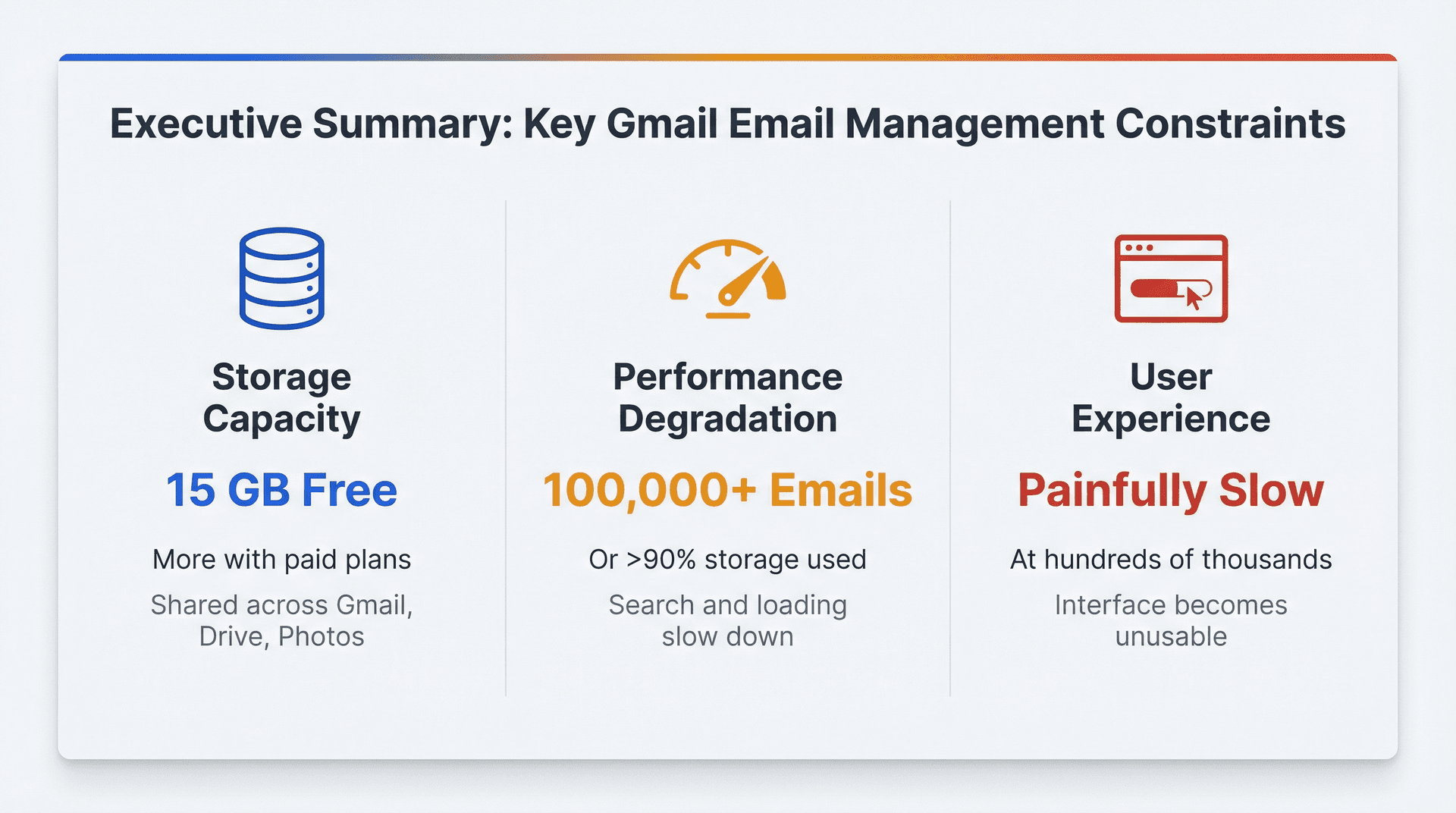
Gmail doesn't have a fixed number of emails that will make it crash. The real constraints are:
Storage capacity: 15 GB free, more if paid
Performance degradation: Starts around 100,000 emails or >90% storage usage
User experience: At hundreds of thousands of emails, Gmail can become painfully slow
You have plenty of warnings before hitting these limits. Gmail will show storage warnings, and you can observe when search gets slow. Explore our collection of email management tips to stay ahead of the curve.
By staying mindful of Gmail's limits and doing periodic cleanups (or using smart automation like Inbox Zero), you can keep even a very active Gmail account running smoothly for years.
In 2025 and beyond, Google's service will likely expand storage and capabilities further. But human attention spans won't expand with it. Understanding mastering email productivity is more important than ever.
So managing your email load is as much about personal productivity as it is about not overrunning Gmail's technical limits. And with the right tools helping you stay organized, you'll never have to worry about whether Gmail can handle your volume.
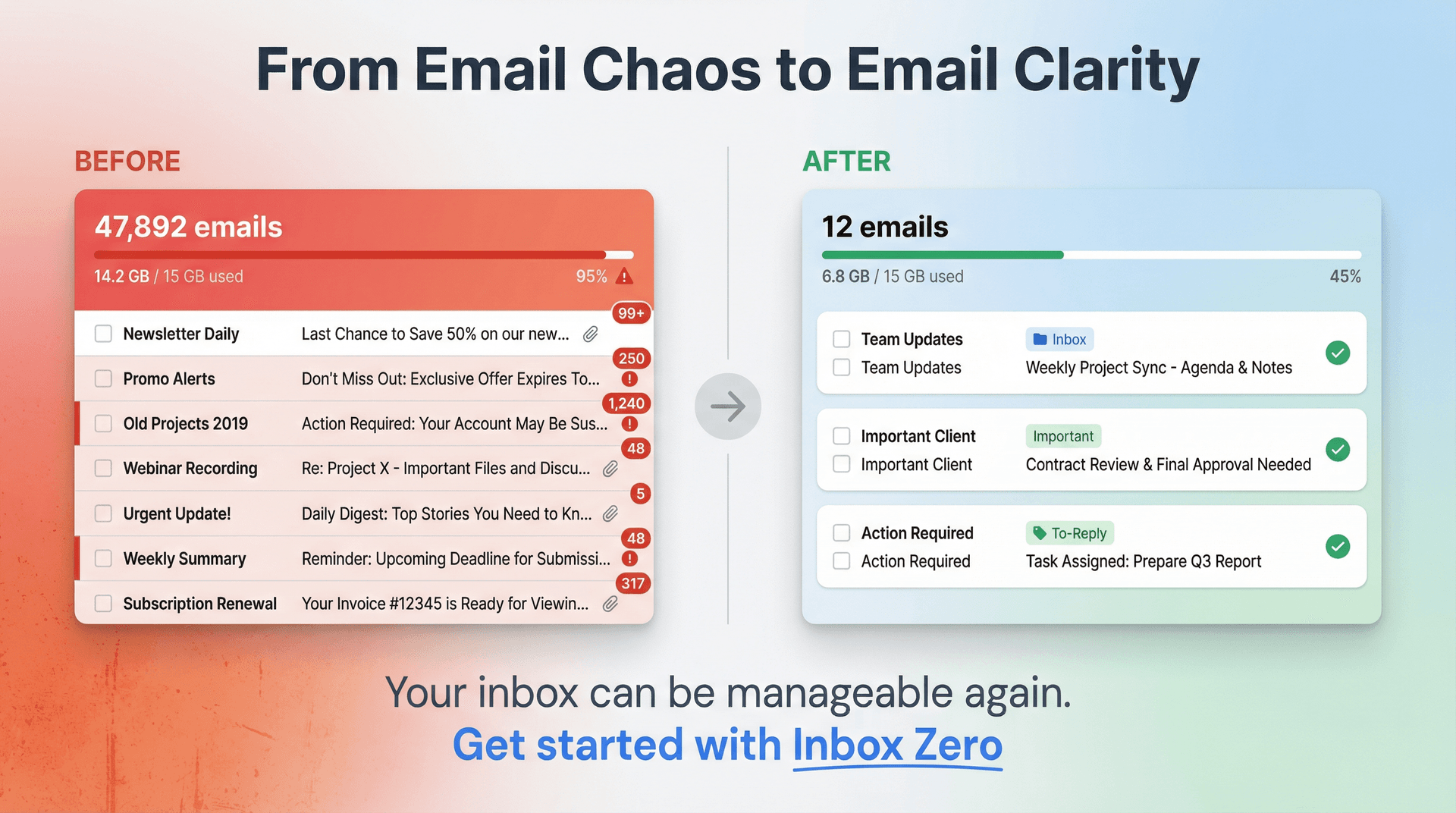
Your inbox can be manageable again. Get started with Inbox Zero and see the difference automation makes.
What is the Inbox Zero Method & How do I Master It?
Discover the Inbox Zero method and learn simple steps to take control of your email inbox, stay organized, and boost productivity.

4 Email Productivity Hacks from Tim Ferriss, Andrew Huberman, and Sam Harris
Explore 4 powerful email productivity hacks from tech and wellness experts like Tim Ferriss and Andrew Huberman. Learn to create focus, optimize processing, manage time wisely, and delegate effectively to conquer your inbox.
Best Time to Send Emails for Response (2026)
Stop guessing when to send emails. Get data-backed timing strategies from 2026 research that improve response rates across all scenarios.
How To Organize Outlook Inbox? (2026 Guide)
Learn how to organize Outlook inbox with rules, folders, categories, and AI automation. Step-by-step guide for 2026 that actually works.